

- trackaffadmin
- 0 Comments
- 50 Views
Put your UTMs in the ad-level URL parameters field, not the Website URL field. Use this template: utm_source=facebook&utm_medium=cpc&utm_campaign={{campaign.name}}&utm_id={{campaign.id}}&utm_content={{ad.name}}. Lowercase every value, favor numeric IDs for stability, then confirm it works by previewing the resolved URL and clicking your live ad in an incognito window to check for both UTMs and fbclid in the landing page address bar.
TL;DR:
- Using UTM templates at the ad level ensures accurate tracking and prevents errors caused by inheritance or mistaken copying from higher levels.
- The recommended UTM template includes parameters for source, medium, campaign, campaign ID, ad name, and optional tokens like placement or ad ID, with IDs preferred over names for stability.
- Proper implementation requires static, lowercase tokens in the ad’s URL parameters field, avoiding manual editing into the website URL or adding duplicate fbclid parameters.
- Common mistakes include starting URL parameters with a question mark, mismatched braces, inconsistent casing, and manually appending fbclid, all of which disrupt accurate data collection.
- Verifying UTM effectiveness involves previewing URLs in Ads Manager, testing in incognito mode, checking Pixel events, and confirming correct data flow into GA4, acknowledging reporting discrepancies.
Table of Contents
- Where Do UTMs Go in Facebook Ads Manager?
- What’s the Right UTM Template and Which Values Actually Matter?
- How Do Meta’s Dynamic Tokens Actually Work?
- What Mistakes Break Facebook UTM Tracking Most Often?
- How Do You Verify Your UTM Setup Actually Works?
- Why UTMs Alone Won’t Save Your Attribution
- Turn Tracked Clicks Into Tracked Sales
- Sources
Where Do UTMs Go in Facebook Ads Manager?
Meta’s own guidance is specific: UTM templates belong in the ad-level “URL parameters” field, sometimes labeled “Build a URL parameter,” found under Ad > Destination. This isn’t a campaign-level or ad-set-level setting. In the Marketing API, this field maps to ad.url_tags, and it does not inherit down from anything above it.
That last point trips up a lot of teams. Each ad carries its own url_tags value. There’s no cascade from campaign to ad set to ad, which means copying a campaign without checking its child ads often means copying a UTM mistake right along with it.
To apply a template across dozens or hundreds of ads without retyping it every time:
- Use Ads Manager’s bulk edit tool to paste one template across selected ads at once.
- Build ads through the Marketing API and set
url_tagsprogrammatically at creation time. - Save a URL parameter template in Ads Manager and reuse it across new ad sets.
One mistake ends this section: typing your UTM string into the Website URL field instead of URL parameters. Dynamic tokens don’t resolve there. You’ll end up serving a landing page with {{campaign.id}} sitting literally in the URL, visible to every visitor, doing nothing for your analytics.
What’s the Right UTM Template and Which Values Actually Matter?
A working template needs six pieces, and each one plays a distinct role in how your data gets read downstream.
- utm_source=facebook tells GA4 and other platforms this traffic came from Facebook, which drives channel grouping.
- utm_medium=cpc (or
paid-social, if that’s your team’s standard) classifies the traffic type. Pick one and enforce it everywhere. Mixing the two across campaigns is one of the fastest ways to split identical traffic into two rows in a report. - utm_campaign={{campaign.name}} gives you a human-readable label in reports.
- utm_id={{campaign.id}} is the parameter worth taking seriously. Campaign names get edited constantly. IDs don’t change, so using the numeric ID as your join key keeps historical data intact even after a rename.
- utm_content={{ad.name}} identifies which creative drove the click.
- utm_term is optional for Facebook ads; most teams skip it since it’s built for search keyword data.
If you need finer detail, three extra tokens help: placement={{placement}} shows whether traffic came from Feed, Reels, or Audience Network, adId={{ad.id}} gives you an unambiguous ad-level reference, and siteSource={{site_source_name}} distinguishes Facebook from Instagram traffic. None of these are standard GA4 fields, but they land in custom dimensions and pay off during troubleshooting.
How Do Meta’s Dynamic Tokens Actually Work?
Meta’s dynamic parameters use double curly braces, full stop. Write {{campaign.id}} and it resolves to a real number on click. Write {campaign.id} with single braces, or {{Campaign.ID}} with capital letters in the token name, and it either fails to resolve or throws an error when you save the ad.
The practical rules that keep this system from breaking:
- Use
{{campaign.id}},{{adset.id}},{{ad.id}},{{ad.name}}, and{{site_source_name}}exactly as documented, with correct capitalization inside the braces. - Prefer numeric IDs over name-based tokens for
utm_idspecifically, since IDs survive a campaign rename and names don’t. - Lowercase every static value in your template. GA4 reads UTM parameters as case-sensitive, so
Facebookandfacebookshow up as two separate sources in your reports even though they’re the same platform. - Keep every token in the URL parameters field at the ad level. Tokens pasted into the Website URL field are treated as plain text and never substitute.
Most tagging failures aren’t exotic. They come from someone hand-typing a template, fat-fingering a brace, or mixing casing between two ad sets built weeks apart, according to Utm.
Pro Tip: Build your UTM template once in a plain text file, lowercase everything, save it as your team’s standard, and copy from that file every time instead of retyping from memory.
What Mistakes Break Facebook UTM Tracking Most Often?
Five errors account for the vast majority of broken attribution reports, and each one has a one-line fix.
- Leading question mark in the URL parameters field. Meta already appends its own separator when it builds the final URL, so a template starting with
?produces a malformed double-question-mark string, according to Analytics Mania’s UTM documentation. Drop the?and start straight withutm_source=. - Single braces or mismatched brace counts.
{campaign.id}or{{campaign.id}won’t resolve. Double-check every token has exactly two opening and two closing braces. - Inconsistent casing across ad sets.
Facebookin one campaign andfacebookin another fragments your source data into duplicate rows. Lowercase everything, always. - Pasting the template into Website URL instead of URL parameters. Tokens sit there as literal text, unresolved.
- Manually appending fbclid to your URL. Meta appends its own
fbclidautomatically on every click. Adding a second one manually can break the resulting_fbccookie and confuse Pixel matching, since fbclid and UTMs serve entirely different jobs: one identifies the click for Meta’s own matching, the other feeds readable metadata to your analytics tool.
How Do You Verify Your UTM Setup Actually Works?
Don’t trust a template until you’ve watched it work end to end. A five-step check catches nearly every tagging error before it costs you real ad spend.
- Preview the resolved URL inside Ads Manager before publishing. If a token shows up as literal text instead of a resolved value, fix it there.
- Click your live ad in incognito mode, ideally with a small test budget running. Inspect the landing page address bar for both your UTM string and Meta’s automatically appended
fbclid. - Check Pixel Test Events to confirm the pageview and any conversion events are firing, and verify the
_fbccookie is present in your browser’s storage. - Open GA4 Realtime and confirm the session shows the expected source, medium, and campaign name rather than “(direct)” or “(not set),” which usually signals a broken or missing parameter.
- Plan for signal loss. When browser restrictions or ad blockers strip client-side data, server-side persistence through Conversions API becomes the backstop that keeps campaign context attached to a conversion even without a working client-side cookie.
Discrepancies between Ads Manager and GA4 numbers are common even with a clean setup, largely because the two platforms use different attribution windows and browser-side tracking limits produce gaps GA4 never sees. Understanding how these two systems diverge helps you stop chasing a perfect match that isn’t realistic.
Why UTMs Alone Won’t Save Your Attribution
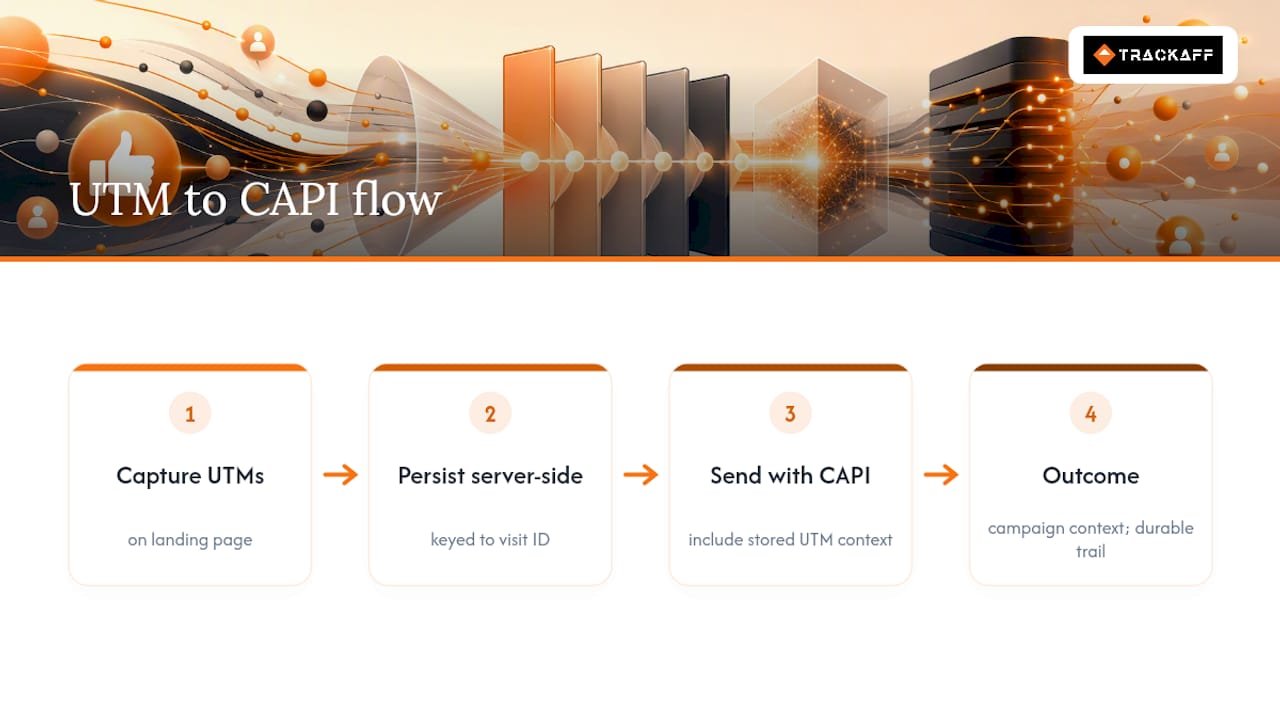
UTMs are metadata, not proof of a match. They tell GA4 which campaign and creative a session came from, in plain readable text, and that’s genuinely valuable for reporting. But UTMs don’t identify a specific ad click the way fbclid does, and they carry nothing back to Meta’s own optimization engine on their own.
The pattern worth adopting: capture UTM values on the landing page and persist them server-side, keyed to an anonymous visit ID or a hashed customer identifier. When a conversion happens, whether that’s on the same visit or three days later, send that stored UTM context along with the server-side Conversions API event. Meta gets campaign-level context on the conversion, and your analytics stack keeps a readable trail that survives cookie loss, ad blockers, and multi-day purchase cycles. Neither UTMs nor Pixel signals alone cover every gap; together, they close most of them.
— Terry
Turn Tracked Clicks Into Tracked Sales
A clean UTM setup tells you which campaign and creative drove a click. It doesn’t tell you whether that click became a sale, deposit, or booking that happened off-site, in a phone call, a CRM, or a third-party checkout. Some tools close that specific gap: branded post-click forms capture the conversion, deduplicate it against your Pixel and server-side events, and report it back to Meta through the Conversions API.
That matters because Meta’s optimization is only as good as the conversion data feeding it. If your UTMs are clean but half your actual sales never register back to the platform, you’re still optimizing toward the wrong signal. This type of software pairs with the tagging setup above rather than replacing it. Your UTMs keep GA4 honest; such software makes sure Meta sees the sales those UTMs were tracking in the first place, with support for CRM webhooks and manual approval on which events count. Check the pricing plans or start a trial on the Trackaff homepage to see how it fits your existing funnel.
Sources
- Facebook & Meta dynamic UTM parameters (and why your builder keeps breaking them)
- Meta Ads UTM parameters: fbclid, dynamic tokens, CAPI
Recommended
Your deals close off the pixel. Meta never finds out.
TrackAff reports your real conversions back to Meta the moment they happen, tied to the exact ad that produced them. 10-minute setup, no code.
Start free 14-day trial → Card required · No charge until day 14 · Cancel in one click